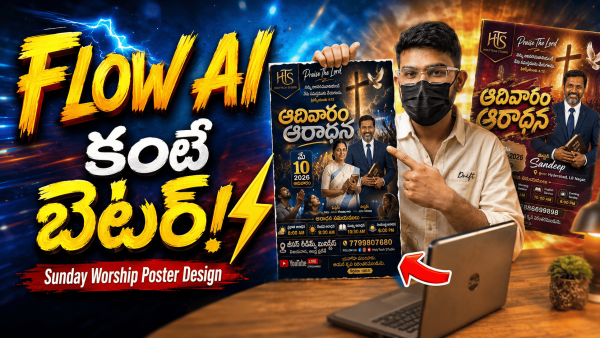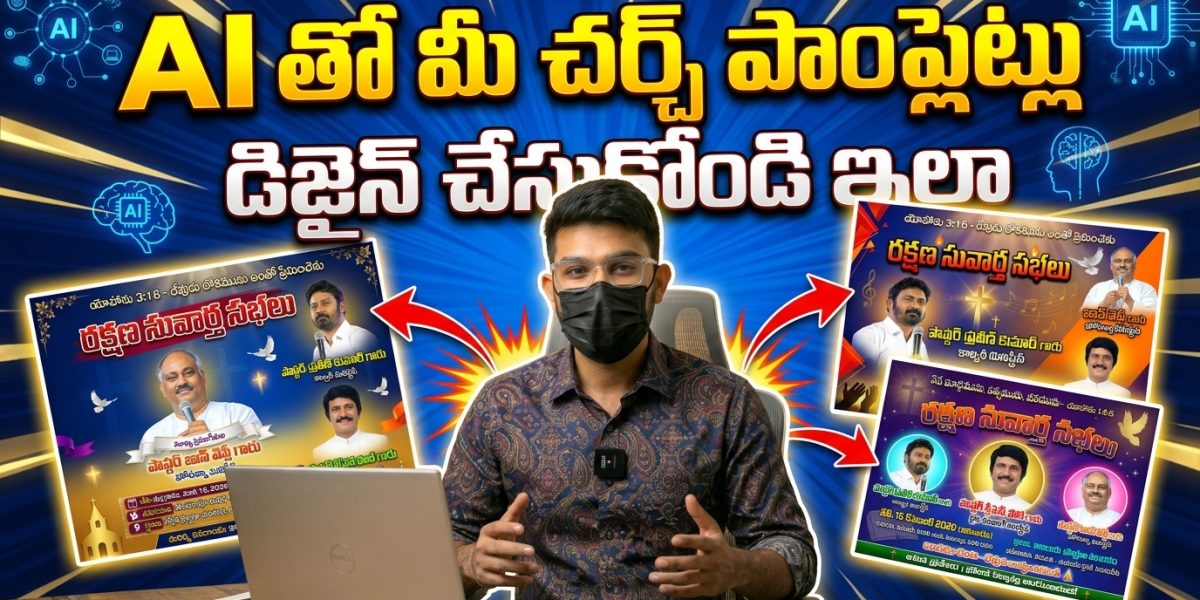
Praise the Lord, everyone! Welcome back to the blog. If you’ve ever been tasked with organizing a church meeting, a youth conference, or a special gospel event, you know the struggle is real when it comes to the “Poster.”
Usually, you have two choices: spend thousands of rupees on a professional graphic designer or settle for a basic, messy design made on a phone app that just doesn’t look “official.” But what if I told you that those days are over? Today, I’m going to show you how to use a “magic” tool called Flow AI to create stunning, high-end posters in minutes. Honestly, the results look so professional that people will think you hired a high-end agency.
Let’s dive into the step-by-step process of how we can use Artificial Intelligence to serve our ministry’s design needs.
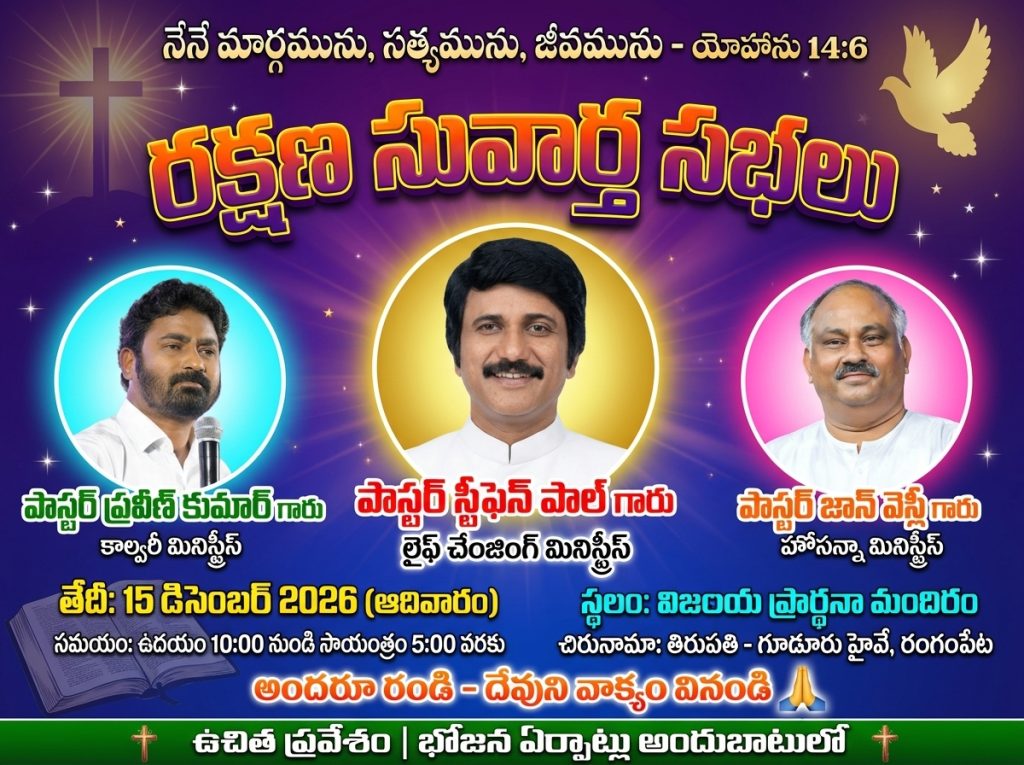
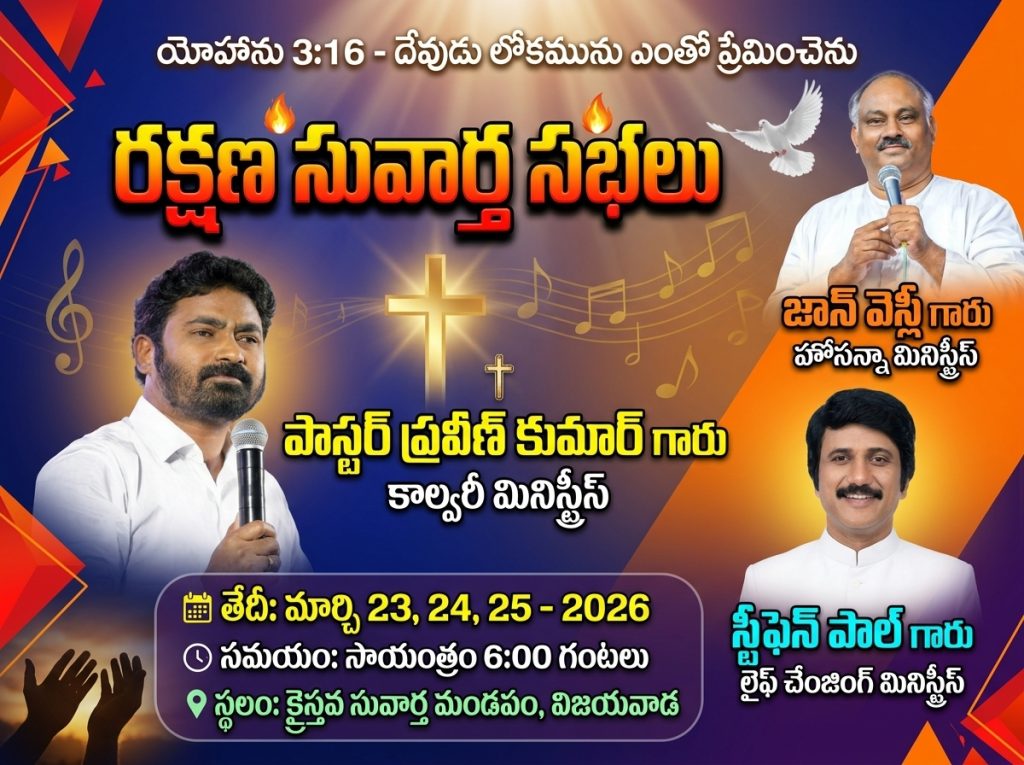
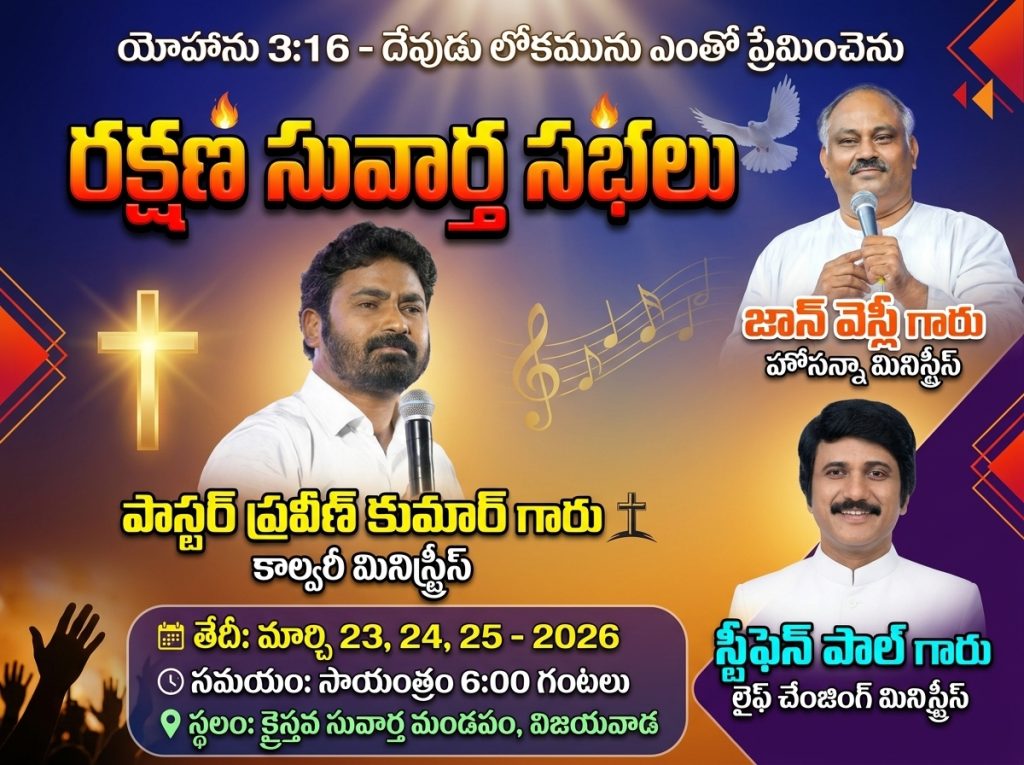
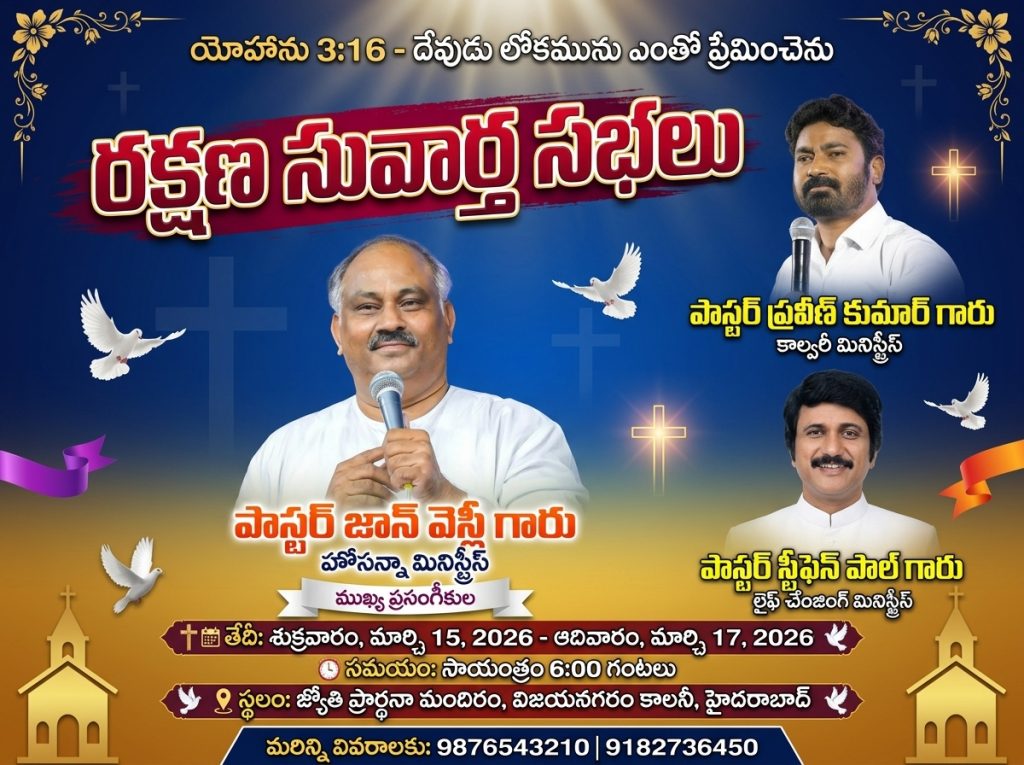
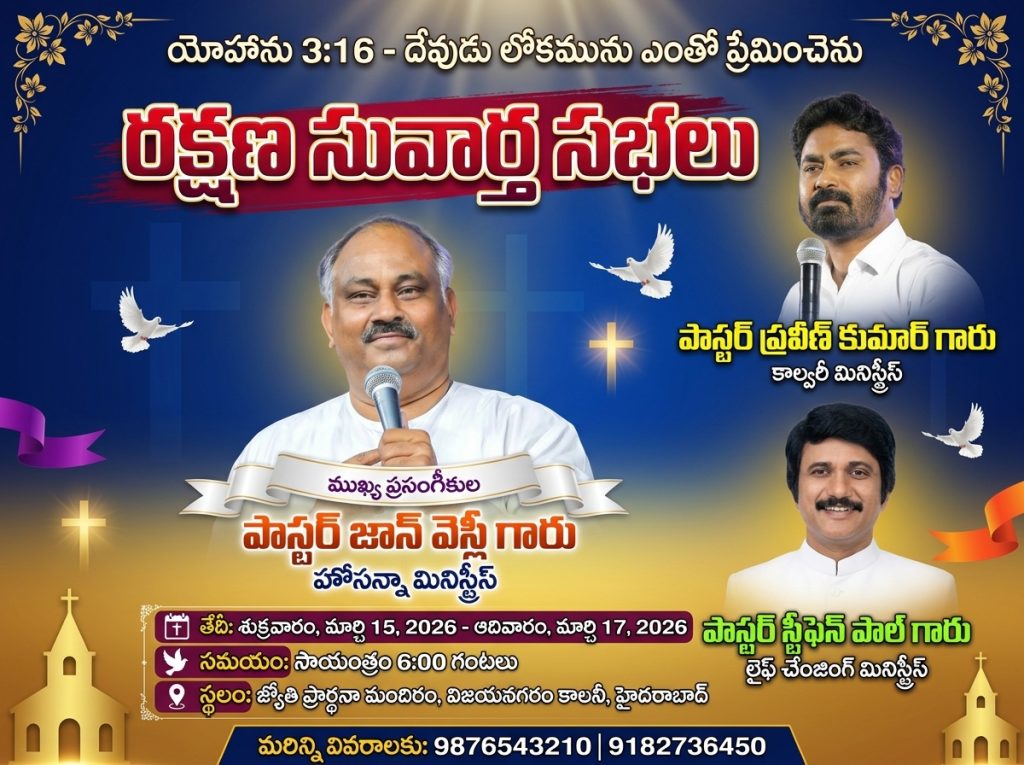
Watch Full Video On Youtube
Why Flow AI is a Game-Changer
Step 1: Setting Up Your Workspace
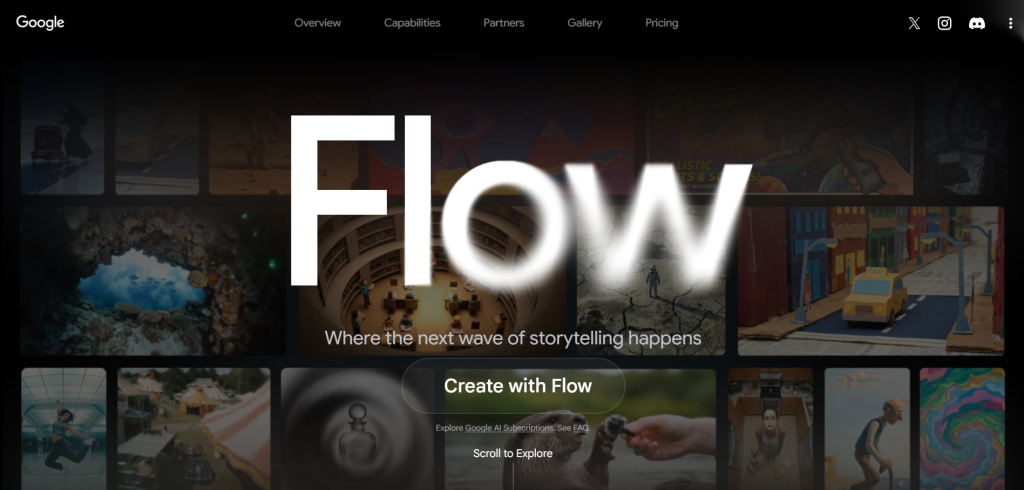
- Access the Tool: Open Chrome on your mobile or laptop and search for Flow AI. Click the first link and select “Create with Flow.” It’s usually a one-click login process.
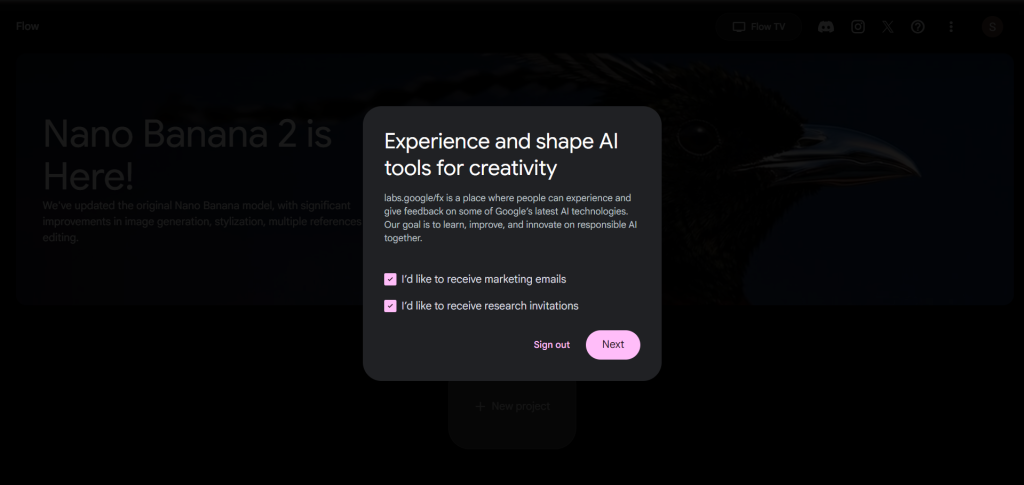
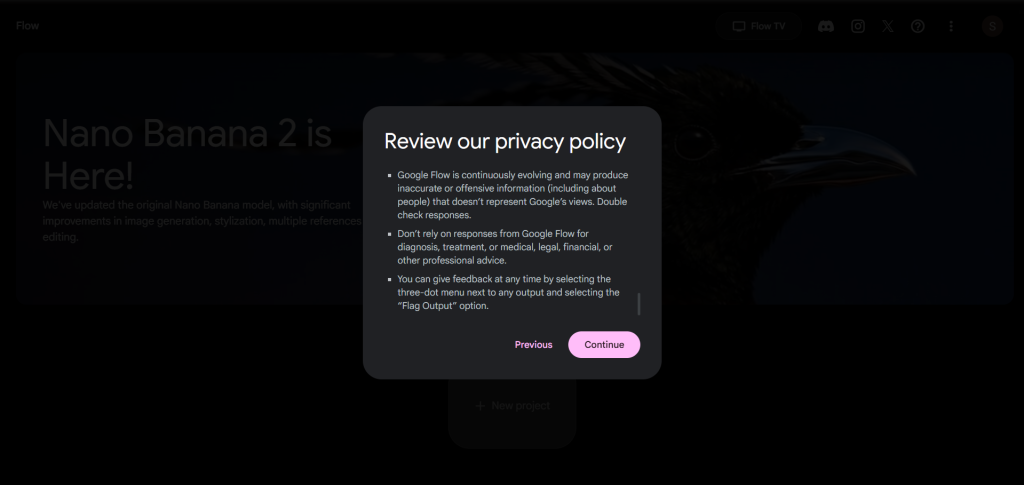
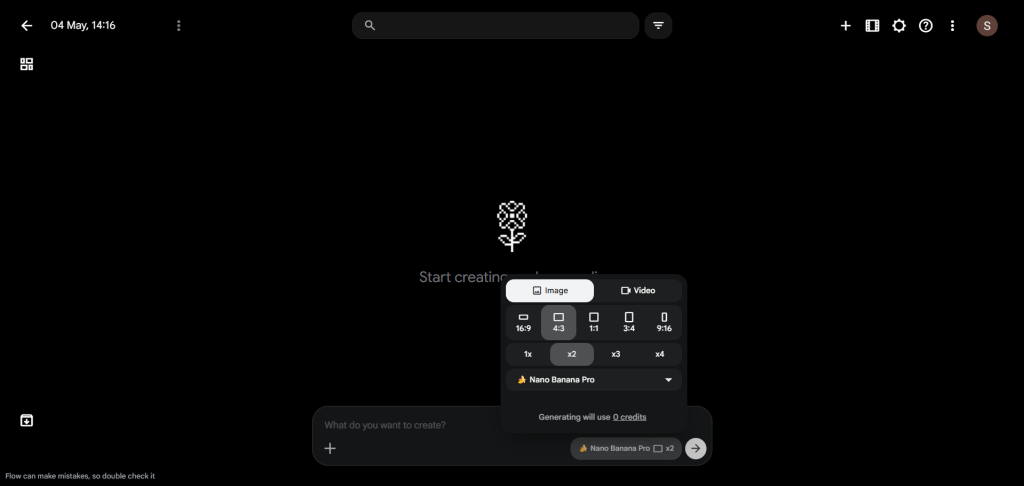
- The Secret Setting: This is where most people go wrong. In the prompt box, you’ll see a default setting called “Nano Banana 2.” For the absolute best, crisp, and professional results, switch this to Nano Banana Pro.
- Quality Control: Make sure to select the 2x Image option. We want our posters to look sharp even when shared on big WhatsApp groups or printed as pamphlets.
- The Aspect Ratio: Since most church posters are either shared as WhatsApp statuses or printed as flyers, I recommend a 3:4 ratio. It gives you enough vertical space for text and speaker images.
Step 2: Crafting the Perfect Prompt
- The Verse: Start with a powerful scripture. For example, “The Word was made flesh…”
- The Event Title: Is it a “Gospel Meeting,” a “Youth Fest,” or “Healing Prayers”? Be clear.
- The Vibe: Use words like “Glow,” “Ethereal,” “Professional,” or “Modern.”
Step 3: Handling Speaker Images (The Most Important Part!)
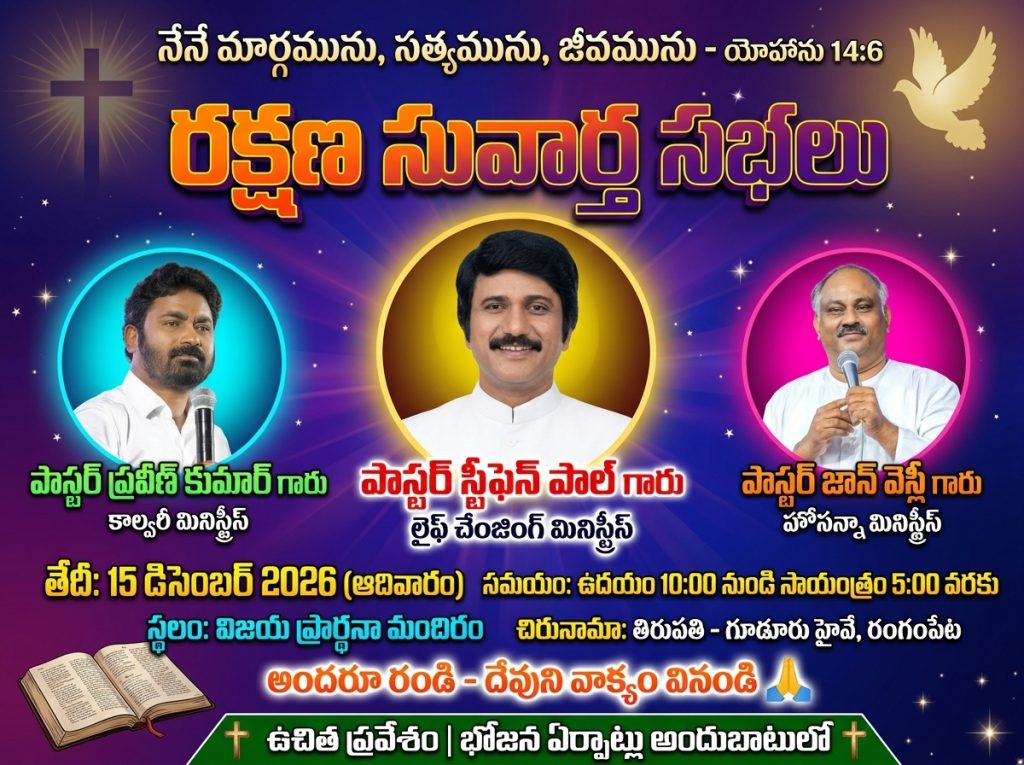
For example, in my recent project:
- I uploaded John Wesley Garu as the first image.
- Praveen Garu as the second.
- Stephen Paul Garu as the third.
- Stephen Paul Garu as the third.
Step 4: Refining the Layout
- Date and Time: Make sure these are bold and legible.
- Location: Add the church address or the meeting hall name.
- Contact Info: Always include a phone number for people to call for directions.
The Final Result: Professionalism at Your Fingertips
Why You Should Do This Yourself
What’s Coming Next?
3 Church Meeting Posters (Prompts)
Prompt – 1
Prompt is Locked
Click the button below and wait 30 seconds to reveal the prompt.
Prompt – 2
Prompt is Locked
Click the button below and wait 30 seconds to reveal the prompt.
Prompt – 3
Prompt is Locked
Click the button below and wait 30 seconds to reveal the prompt.